

Showing posts with label video. Show all posts
Showing posts with label video. Show all posts
Jan 29, 2010
Check out GRC and GSEL on YouTube
YouTube is now home to videos from both the NASA Glenn Research Center (GRC) and the Glenn Science & Engineering Library (GSEL). Learn more about GRC's involvement in space exploration and aeronautics research at nasaglenn's channel, and be sure to check out GSELibrary's channel for tutorials and 'how-to' guides. And don't forget to subscribe to both channels using either your YouTube or Google account.


Oct 26, 2009
Find and Manage News with Google Reader
Let the News find you! with Google Reader™
 Drowning in Information? All you need is three simple letters: RSS
For a brief introduction to what RSS can do, watch the video below.

Wow! I want one!
Step 1: Get a Google Reader Account
Go to: www.google.com/reader to sign up If you have a Gmail account - you can sign up with your same username and password.
Step 2: Find News
Signing up to receive news at your Google Reader Account is called Subscribing.
 <----- Images like these are your friends! Before you search for news, see if you favorite websites already have RSS.
Step 3: Subscribe
Once you find the RSS webpage (this web page may look like crazy code in your browser), copy the URL from the address bar.

Now paste this into the "Add Subscription" in Google Reader.

That's it! Next month we will be talking about how Google Reader can help you share news with others.
Finding the Best News
NASA News
NASA RSS Feeds
(visit the link or copy the URL directly to subscribe)
Glenn Technical Library also produces a number of News Feeds and specialized news aggregation is available on any topic. Call the Library at 3-8499.
Government News Feeds:
Did you know the U.S. Government has a whole library of RSS feeds published by different Governmental Agencies and Departments?
Custom News
You can create an RSS News feed that is so specific it stops you from having to search.
Customized news feeds is a service offered by Glenn Technical Library at NO CHARGE to Glenn employees. Call Paige Lucas-Stannard for more information at 3-8499.
Drowning in Information? All you need is three simple letters: RSSFor a brief introduction to what RSS can do, watch the video below.
Wow! I want one!
Step 1: Get a Google Reader Account
Go to: www.google.com/reader to sign up
If you have a Gmail account - you can sign up with your same username and password.Step 2: Find News
Signing up to receive news at your Google Reader Account is called Subscribing.
<----- Images like these are your friends! Before you search for news, see if you favorite websites already have RSS.
For example: Your job requires you to keep up with a wide array of data and the Journal of Physical and Chemical Reference Data is your Bible. Visiting the journal's website you notice the orange "rss" button and clicking on it allows you to subscribe to news on this topic.
Government Executive doesn't use an image but if you scroll down to the
very bottom of the page there is a link that says "News Feeds." This
leads you to a page where you can view and subscribe to several
different feeds.
If you are a Firefox user, an orange icon in you address bar will tell you if a site has an RSS feed. Click on the icon and it will add it to the Live Bookmarks in Firefox. Live Bookmarks are a way to view RSS feeds without a reader like Google Reader. Google Reader is more robust and easier to manage - but seeing this icon in Firefox tells you to keep looking on the website for that elusive RSS!
Step 3: Subscribe
Once you find the RSS webpage (this web page may look like crazy code in your browser), copy the URL from the address bar.
Now paste this into the "Add Subscription" in Google Reader.
That's it! Next month we will be talking about how Google Reader can help you share news with others.
Finding the Best News
NASA News
NASA RSS Feeds
(visit the link or copy the URL directly to subscribe)
Breaking News (http://www.nasa.gov/rss/breaking_news.rss)
Glenn Technical Library also produces a number of News Feeds and specialized news aggregation is available on any topic. Call the Library at 3-8499.
Government News Feeds:
Did you know the U.S. Government has a whole library of RSS feeds published by different Governmental Agencies and Departments?
Get updates for small business owners, economic news, and other business related information.
News on recalls and public safety...
News, press releases, speeches, contract announcements...
Department of Education, Office of Personnel Management, and Equal Employment Opportunity Commission newsfeeds...
News on conservation, forests, farms, human nutrition, hazardous waste, toxic chemicals, trash...
Housing, census information, weather...
News and press releases from the National Institutes of Health, drug recalls, research...
Homeland Security, Customs and Border Protection, FEMA, courts...
Courts, culture, data, statistics, copyrights, White House news and speeches...
Weather, earthquakes, energy, cyber alert system documents, scientific research...
Custom News
You can create an RSS News feed that is so specific it stops you from having to search.
Customized news feeds is a service offered by Glenn Technical Library at NO CHARGE to Glenn employees. Call Paige Lucas-Stannard for more information at 3-8499.
Oct 6, 2009
Aug 24, 2009
Academic Earth offers video lectures online and open to all
Academic Earth is an organization whose mission is to give "everyone on earth access to a world-class education" (Robert Ludlow, Academic Earth Founder/CEO). The site provides video lectures and additional educational materials from several major universities (Berkeley, Harvard, MIT, Princeton, Stanford, UCLA, and Yale) across a variety of subjects - chemistry, engineering, physics, and more. Browse by subject, university, or instructor, or search by keyword. More than 200 instructors now provide over 1,500 lectures, some of which are organized into courses of 4 to 50 lectures each.

Follow a particular instructor or subject by signing up for email alerts or an RSS feed, or by becoming a fan of Academic Earth on Facebook. Find your favorite alert method on the toolbar at the bottom of the site:

and stay up-to-date as new content is added to the site. A good resource for students, those who want to learn the basics about a new field, or those who want to stay in touch with current developments within their field.
Follow a particular instructor or subject by signing up for email alerts or an RSS feed, or by becoming a fan of Academic Earth on Facebook. Find your favorite alert method on the toolbar at the bottom of the site:
and stay up-to-date as new content is added to the site. A good resource for students, those who want to learn the basics about a new field, or those who want to stay in touch with current developments within their field.
Jul 14, 2009
Hyperwords - In Page Search Tools

Hyperlinks are the roadways of the web. We navigate between webpages and websites by clicking on hyperlinks that the page authors inserted for you. What about all those words that aren't hyperlink? How can we get more information out of those words?
Enter: Hyperwords. The basic function of Hyperwords is to select any text on a webpage and make
it easy to get additional information about the text. You are no longer
restricted to following only the links others have made for you.
Watch the video for a demonstration of what hyperwords can do for you:
How to Install:
 Hyperwords takes just seconds to install as an add on to Firefox. If you are not currently using Firefox as your web browser, visit our previous Surf the Web Smarter issue to learn why you might like to switch. Click the button below to install Hyperwords:

Quick Ways to Start Using Hyperwords Now:
As you saw from the video there are many ways to use hyperwords. Here are some of my favorites:
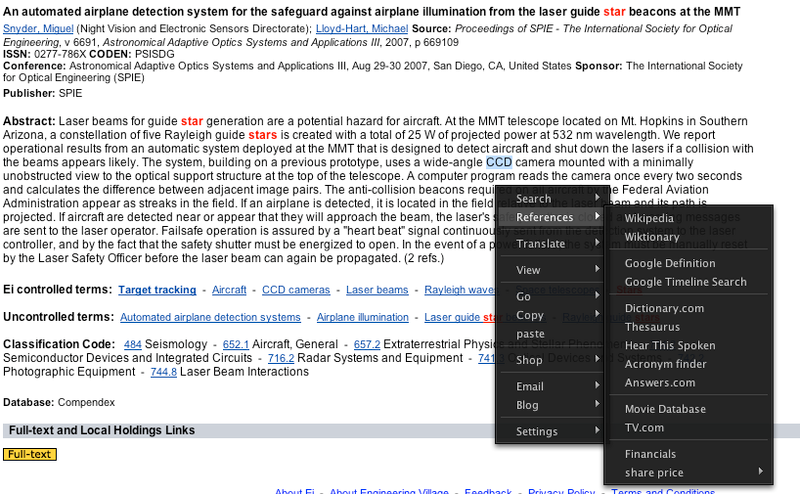
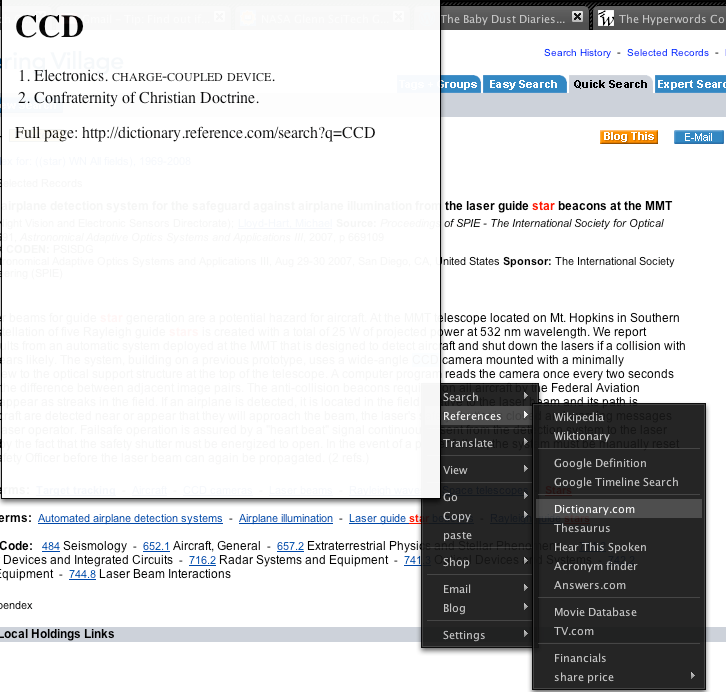
- Definition Lookup. Instead of leaving the page to visit dictionary.com or another glossary service, you can find out the definition of a word without having to leave the page. For example, if you are reading an abstract online and you come across a word you don't know, like CCD Camera in the example below, hyperwords will give you the definition easily without having to leave the page.
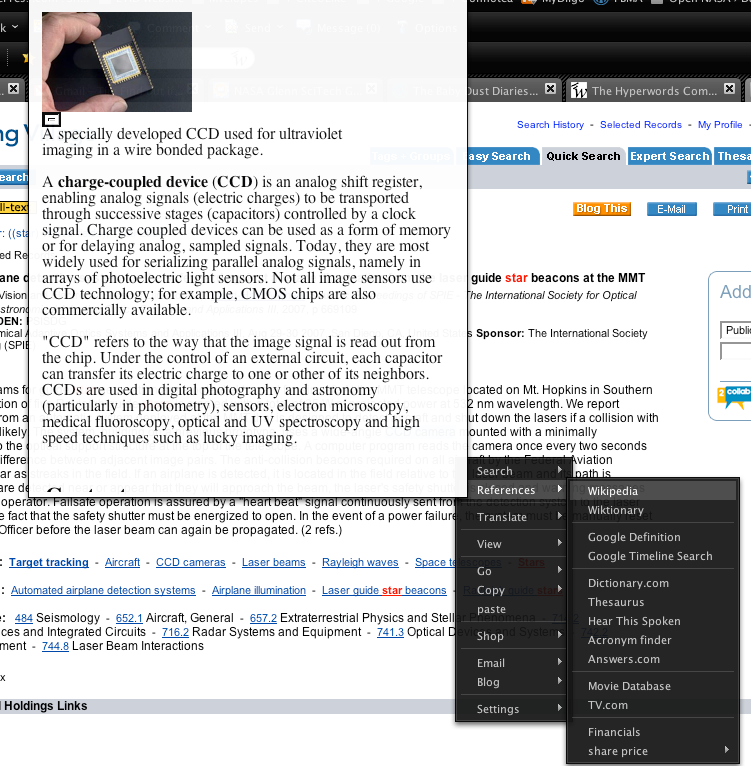
- Encyclopedia Lookup. With the same word you can also get more detials at Wikipedia the online encyclopedia.
- Email. If you decide that this is something you want to share with someone else (or email to yourself for future reference) you can easily do this with Hyperwords. Hyperwords will open your default email program with the URL and any highlighted text in the body of the email.
And that is just the begining. Learn all the ways you can make Hyperwords work for you in the Hyperwords Users Guide.
If you have any questions, please contact Paige Lucas-Stannard at 3-8499.
Sep 29, 2008
Science knowledge transfer with sciencestage.com
ScienceStage.com is a virtual conference room, lecture hall, laboratory, library, and meeting venue all in one. ScienceStage.com will enable scientists, lecturers, academics, students and practitioners from all fields to present and share ideas and findings through video streaming, audio streaming and text documents. Users can make use of classical community functions like chat, email, blog etc., and can install virtual rooms, assess contributions, make interesting contacts and more.
ScienceStage.com offers the following primary features:
- Publishing and managing of video and audio clips (e.g. lectures, interviews, documentaries)
- Publishing and managing of text documents (e.g. scientific papers, lecture notes, study documents)
- Commenting, assessing of contributions and embedding of all media
- Creation of playlists and lists of favorites
- Community and networking functions: creating of personal or institutional profiles (e.g. for individuals, universities, institutes, publishers), messaging, contacting, commenting
- Creating of groups (e.g. for virtual classroom, venue, special topics)
ScienceStage.com offers the following primary features:
- Publishing and managing of video and audio clips (e.g. lectures, interviews, documentaries)
- Publishing and managing of text documents (e.g. scientific papers, lecture notes, study documents)
- Commenting, assessing of contributions and embedding of all media
- Creation of playlists and lists of favorites
- Community and networking functions: creating of personal or institutional profiles (e.g. for individuals, universities, institutes, publishers), messaging, contacting, commenting
- Creating of groups (e.g. for virtual classroom, venue, special topics)
Sep 25, 2008
NASA eClips: Innovative Real World Learning
NASA is sharing some of its innovations and research with students and the public through NASA eClips, a web-based video and educator resource repository which focuses on grades K-5, 6-8, 9-12 and the general public. NASA's Our World focuses on grades K-5; NASA's Real World Mathematics focuses on grades 6-8; NASA Launchpad targets grades 9-12; and NASA 360 targets the general public and highlights NASA’s impact on daily lives, showcasing some of the 30,000 inventions developed by NASA over the past 50 years. It examines how technologies developed by or for NASA are used in everything from space exploration to everyday consumer products.
Subscribe to:
Posts (Atom)